
The Best Fluffy Pancakes recipe you will fall in love with. Full of tips and tricks to help you make the best pancakes.


Finally! You Can Change Your Gmail Address (And Keep Everything)
Finally! You Can Change Your Gmail Address (And Keep Everything)
For nearly two decades, the @gmail.com address you created on a whim, perhaps as a teenager or with a quirky nickname, was yours forever. It was a digital tattoo, permanent and unchangeable unless you were willing to embark on the daunting task of migrating all your data, emails, and contacts to an entirely new account.
But the digital winds have changed! Google is rolling out a massive, highly anticipated update that finally allows users in the US and Canada (and soon globally) to change their primary Gmail address without losing a single email, photo, or Google Drive file. This is a game-changer for millions.
Why This is a Big Deal: Goodbye to Cringey Usernames!
Think about it: how many times have you wished you could ditch party_animal_2003@gmail.com for something more professional like john.doe@gmail.com? Or perhaps you’ve changed your name, started a new career, or simply grown tired of an outdated handle. Until now, your options were limited and inconvenient.
This new feature addresses those frustrations head-on. It’s not just about aesthetics; it’s about control, professionalism, and aligning your digital identity with your current self.
How Does the New Gmail Address Change Work?
Google has implemented this update with user convenience and data integrity as top priorities. Here’s a breakdown of the key features:
- Seamless Transition: Your new primary Gmail address immediately becomes your main identifier across all Google services. All your existing emails, Google Drive files, Google Photos, YouTube history, and other associated data remain intact and linked to your account.
- Old Address Becomes an Alias: This is where Google truly shines. Your old, original
@gmail.comaddress doesn’t disappear into the ether. Instead, it automatically becomes an alias for your account. This means:- Any emails sent to your old address will still arrive in your inbox. No more worrying about missing important notifications from banks, government services, or long-forgotten subscriptions.
- You can still use your old address to sign in to your Google Account if you prefer.
- Login Flexibility: You’ll be able to sign in to your Google Account using either your new primary Gmail address or your previous one. This provides a smooth transition period and ensures you won’t get locked out.
Important Rules and Limitations to Be Aware Of
While this update is incredibly liberating, Google has put some safeguards in place to prevent abuse and ensure system stability:
- Once-a-Year Limit: You can only change your primary Gmail address once every 12 months. Choose wisely!
- Three-Change Lifetime Cap: Currently, there’s a lifetime limit of three total changes per Google Account. This encourages users to make deliberate choices rather than constantly switching addresses.
- Chromebook Users: If you use a Chromebook, you might need to manually sign out of your Google Account and sign back in to ensure your new primary address syncs correctly across your device.
- Third-Party Apps: While Google handles the transition flawlessly within its ecosystem, some third-party websites or apps where you used “Sign in with Google” or manually entered your old Gmail address might still display your old address for a period. You may need to manually update your email address within those services.
How to Change Your Gmail Address: Step-by-Step
The feature is rolling out gradually. Here’s how to check if it’s available for you and initiate the change:
- Go to Your Google Account: Open your web browser and navigate to myaccount.google.com. You may need to sign in.
- Access Personal Info: In the left-hand navigation panel, click on “Personal info.”
- Locate Email Settings: Scroll down to the “Contact info” section and click on “Email.”
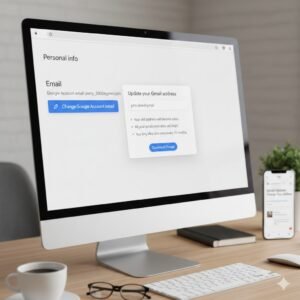
- Look for the “Change” Option: Here, you should see your primary Gmail address listed. Look for an option that says “Change Google Account email” or a similar prompt next to your address.
- If you don’t see this option, the feature hasn’t rolled out to your account yet. Check back periodically!
- Follow the Prompts: If the option is available, click on it and follow the on-screen instructions. You’ll be guided through selecting your new desired username. Google will verify its availability and walk you through the confirmation process.
- Confirm and Celebrate! Once confirmed, your new Gmail address will be active.
The Future of Your Digital Identity
This update represents a significant step forward in giving users more control over their digital identities. No longer are you tied to an outdated username from years past. Whether you’re looking to professionalize your email, align with a new personal brand, or simply want a fresh start, Google has finally made it easy to update your Gmail address without the headache.
Have you changed your Gmail address yet? What are your thoughts on this long-awaited update? Share your experiences in the comments below!




Hey, nice blog